2-Step Verification
2-Step Verification (also known as two-factor authentication) offers a second layer of protection and helps prevent someone from accessing your account using a stolen or compromised password. To help protect your personal information and enhance your account security, 2-Step Verification is now required to access your online accounts. You can choose a preferred method and manage your 2-Step Verification settings in Profile and select Security Settings
Choose from 3 different methods:
1. Ameriprise Financial App:
Send a push notification to your mobile device.

2. Third-Party Authenticator App:
Generate your own code on your mobile device.

3. Text or Call:
Send a code to your phone via text message or voice call.
What is 2-Step Verification?
2-Step Verification requires that two authentication steps are taken to verify that the person requesting access to something is who they say they are.
Authentication steps are broken into three category factors:
- Something you know: information stored in your memory, like your password.
- Something you have: information that you have access to, like a one-time code or mobile app push notification.
- Something you are: information that is in you, biometrics like your fingerprint or facial recognition.
What are my options for 2-Step Verification?
Your options for 2-Step Verification can be found in Profile Security Settings after logging in to your account. Select your preferred method from the options below and follow the instructions when prompted.
- Ameriprise Financial app: A push notification will be sent to your enrolled mobile device through the Ameriprise Financial app.
- Third-party authenticator app: A verification code will be generated through a third-party authenticator app on your mobile device. Cell service is not required.
- Text message or phone call: A 6-digit verification code will be sent to your enrolled phone number by text message or automated voice call.
How do I change my 2-Step Verification method?
2-Step Verification enrollment and preferences can be managed in Profile Security Settings after logging in to your account.
What do I do if my device is lost or stolen?
If the device used for 2-Step Verification is lost or stolen, an account number or Client ID can be used for account access. Customer Service can also help with account access or permanently block a device from receiving notifications.
How do I turn off 2-Step Verification?
To help protect your personal information and enhance your account security, a second factor is now required to access your accounts. This extra step helps keep your information secure, even if someone has your password. To manage your 2-Step Verification preferences, go to Security Settings in Profile.
If you cannot log in for online access, please contact Customer Service at 800.862.7919.
Ameriprise Financial app push notifications
Push notifications are messages sent directly to a user’s device through an application. To use, clients need to have the Ameriprise Financial app installed on an Apple or Android device (phone or tablet).
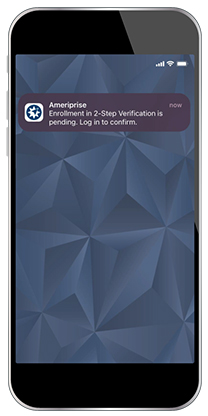
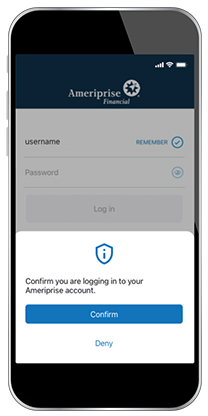
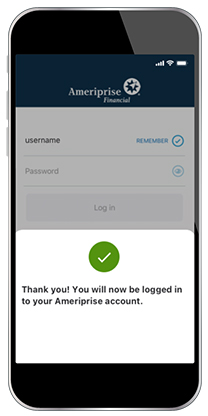
After 2-Step Verification is turned on, a push notification will be sent to the enrolled device when you log in to access your account in the secure site on ameriprise.com. Accepting the push notification is required to verify your identity.
What are the benefits of using the Ameriprise Financial app for 2-Step Verification?
- More secure – Push notifications are sent in real time directly through the app set up on your device. If there is a fraudulent or suspicious access request, the request can be denied, and you can take action immediately to help protect your accounts.
- Easy – Approve push notifications with the tap of a finger to immediately gain access.
- Convenient – Free to use and doesn’t require any additional hardware to manage.
Are there specific requirements for receiving notifications through the Ameriprise Financial app?
There are a few requirements for receiving verification notifications on your device:
- A device (tablet or phone) with mobile data or Wi-Fi.
- The latest version of the Ameriprise Financial app downloaded to your device.
- A successful login to the Ameriprise Financial app on your device.
- Confirm your device is set up to receive push notifications:
- Within the Ameriprise app, navigate to the More menu and go to Settings.
- From Settings, select Troubleshoot. Follow the Troubleshooting Push Notifications guide to confirm your device is set up to receive push notifications.
- If you are still experiencing problems, please contact Customer Service at 800.862.7919.
How do I turn on 2-Step Verification using the Ameriprise Financial app?
Before turning on 2-Step Verification, download the latest version of the Ameriprise Financial app or install the latest app updates to your mobile device or tablet.
- Log in to the secure site on ameriprise.com and go to 2-Step Verification in Profile Security Settings.
- Choose Ameriprise Financial app push notification.
- Select the preferred device that will be used for 2-Step Verification.
- In the app, a notification will appear. Confirm notification on device to enroll in 2-Step Verification.
Once the device is confirmed, 2-Step Verification will be turned on. A push notification will be sent to the device to verify your identity and confirm account access to the secure site on ameriprise.com. Accepting the push notification is required to verify your identity.
How do I log in with 2-Step Verification push notifications sent through the Ameriprise Financial app?
Once 2-Step Verification is turned on, a push notification will be sent to the enrolled device when you log in to access your account in the secure site on ameriprise.com. Accepting the push notification is required to verify your identity.
Are push notifications only used for 2-Step Verification?
Push notifications can also be sent to clients with the app for certain Working with My Advisor or Account Management alerts.
Where can I find 2-Step Verification push notifications on my device?
2-Step Verification push notifications can be found in your device Notification Center (Apple) or the drop-down notification bar (Android). Notifications are active for 5 minutes. If the notification is not accepted within that time, a new notification request will be needed to log in.
Third-party authenticator app code
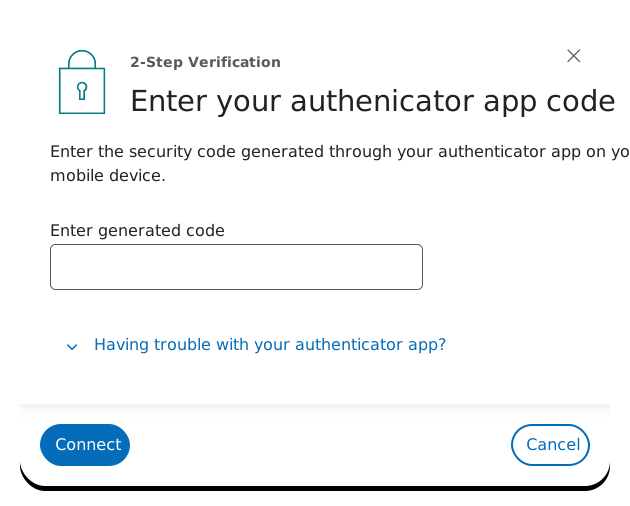
A third-party authenticator app is a software application that is installed on a smartphone, computer or tablet and used to securely verify your identity. Authenticator apps generate a unique, time sensitive code (typically refreshed every 30 seconds) required every time you log in to your account.

What are the benefits of using a third-party authenticator app for 2-Step Verification?
- More secure – Authenticator app codes are generated based on the current time and a shared secret key, making them unique and available for one-time use only.
- Readily available – Codes can be generated without internet connection or mobile service.
- Convenient – Typically free and you can choose an authenticator app based on your personal security preference.
What third-party authenticator apps are available?
There are many authenticator apps to choose from. Here are a few examples:
- Twilio Authy
- Duo Mobile
- Google Authenticator
- Microsoft Authenticator
How do I turn on 2-Step Verification using a third-party authenticator app?
Before turning on 2-Step Verification, download a third-party authenticator app to your device or install the latest app updates to your mobile device or tablet.
- Log in to the secure site on ameriprise.com and go to 2-Step Verification in your Profile Security Settings.
- Choose Generate a code with a third-party authenticator app.
- Open your third-party authenticator app and add an account (instructions will vary by app).
- Using your device, scan the Ameriprise QR code or enter the secret key to register your account on the third-party authenticator app.
Once connected, a third-party authenticator code will be generated on your mobile device when you log in to access your account in the secure site on ameriprise.com. This code is required and must be entered to verify your identity and confirm account access.
How do I log in with 2-Step Verification using a third-party authenticator app?
Once 2-Step Verification is turned on, use the enrolled third-party authenticator app to generate a code on your device when you log in to access your account in the secure site on ameriprise.com. Entering a generated code is required to verify your identity.
One-time codes sent via text or call
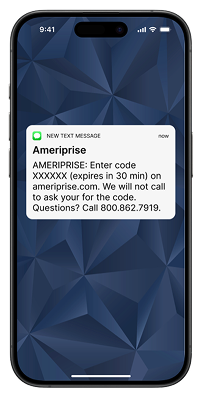
One-time codes contain a unique string of 6 numbers and expire after a short period of time. When 2-Step Verification is turned on, Ameriprise Financial will send an automated voice call or text message with a one-time code to a number you choose anytime account access is requested.

What are the benefits of using one-time codes sent via text message or voice call for 2-Step Verification?
Convenient - One time codes are sent via text or call to a phone number you choose.
Accessible - One time codes sent by automated call are especially helpful for users with sight issues.
How do I turn on 2-Step Verification using a one-time code sent via text or voice call?
- Log in to the secure site on ameriprise.com and go to 2-Step Verification in your Profile Security Settings.
- Choose send a code via text or voice call.
- Select the phone number you would like the code to be sent to.
- Select the code delivery method, text message or automated voice call.
- A one-time activation code will be sent to the phone number selected per the delivery preference, text or call.
Once 2-Step Verification is turned on, a one-time verification code will be sent via text or voice call every time account access is requested. The code will be required to verify your identity and confirm account access to the secure site on ameriprise.com.
How do I log in with 2-Step Verification using a one time code sent via text or voice call?
Once 2-Step Verification is turned on, a one-time verification code will be sent via text or voice call every time account access is requested. The code will be required to verify your identity and confirm account access to the secure site on ameriprise.com.